Here’s How to Split MBOX File Into Smaller Files Effortlessly

If your MBOX file has grown too large and is slowing down your email client, it’s time to split it into smaller parts. Large MBOX files often cause performance issues, errors, and even data corruption in email clients like Thunderbird, Apple Mail, and others. Splitting an MBOX file into smaller files not only improves performance but also keeps your mailbox organized and easy to manage.
Therefore, we have drafted this comprehensive guide to show you how to split MBOX file into smaller files using both manual and automated methods so you can manage your mailbox efficiently without risking data loss.
Table of Contents
MBOX is a file format commonly used to store email messages. Also, this file can be accessed by email clients such as Mozilla Thunderbird, Apple Mail, Eudora, Google Takeout, Opera Mail, and many more. However, managing the data and reaching out can be challenging when working with large MBOX files. Now, if you are facing the problem of large MBOX file size limit and are looking for a reliable solution, Then, your search is over. So, today we will tell you the best ways to split MBOX file into smaller files through this blog. Thus, read the blog till the end and try the solutions.
Now, let us move forward to see the user query and know about the reasons and benefits behind splitting MBOX files into separate files.
User Query:
Top Reasons to Cut MBOX File Into Smaller Files
Once it reaches full size, it will undoubtedly have many of the same problems as Thunderbird or Apple Mail. We have listed some issues below:
- New files will not occupy the storage drive.
- Emails will no longer be accepted by the mail server.
- Malware and adware can make MBOX files easy targets.
- Emails in the Inbox folder cannot be opened by the recipient.
- It is possible that Windows will not allow Mozilla Thunderbird to open.
- Every time you open an account, Thunderbird will display the “UID maximum mailbox size exceeded” error.
After knowing all the reasons. Let us know about the benefits of dividing MBOX into smaller files.
Also Read: How to Convert MBOX File to PDF?
Split MBOX File Into Smaller Files with Automated Software
If you seeking the best solution to divide the MBOX file into smaller parts. Then, you can use this MBOX Splitter Tool. This utility split MBOX files into separate files in an easy & simple manner without wasting time and data. Also, the software is effective and packed with powerful capabilities. File segmentation is one of these advantages. Additionally, it enables users to split the result file after the MBOX file conversion process. You can use the application to split the final file into MB or GB-sized chunks.
This useful tool split multiple MBOX files and preserves attachments. Moreover, this software enables users to restore deleted MBOX emails in high-quality file format and recover all deleted emails from MBOX files.
Steps to Split MBOX File into Smaller Parts
- First, download and run the utility on your local system to start the split process. A home window will appear.
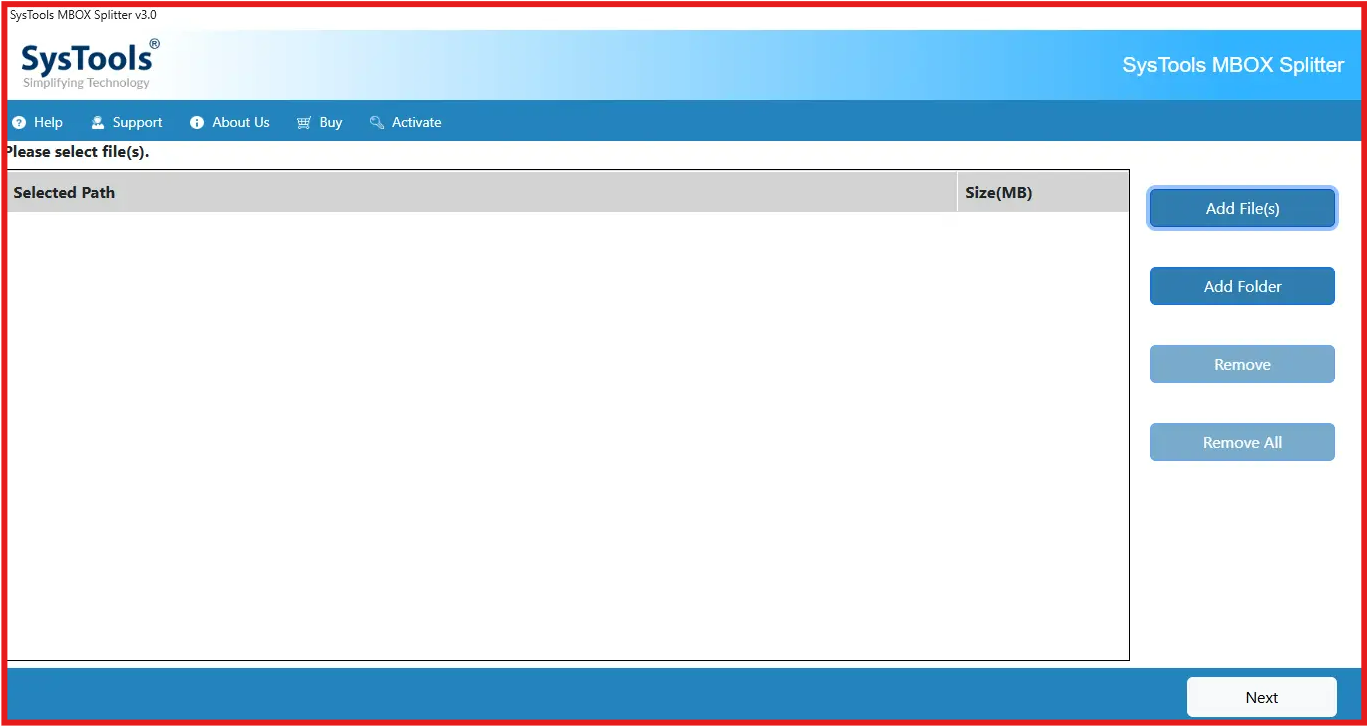
- Choose either Add File or Add Folder option to browse the MBOX file that you want to split into smaller size.
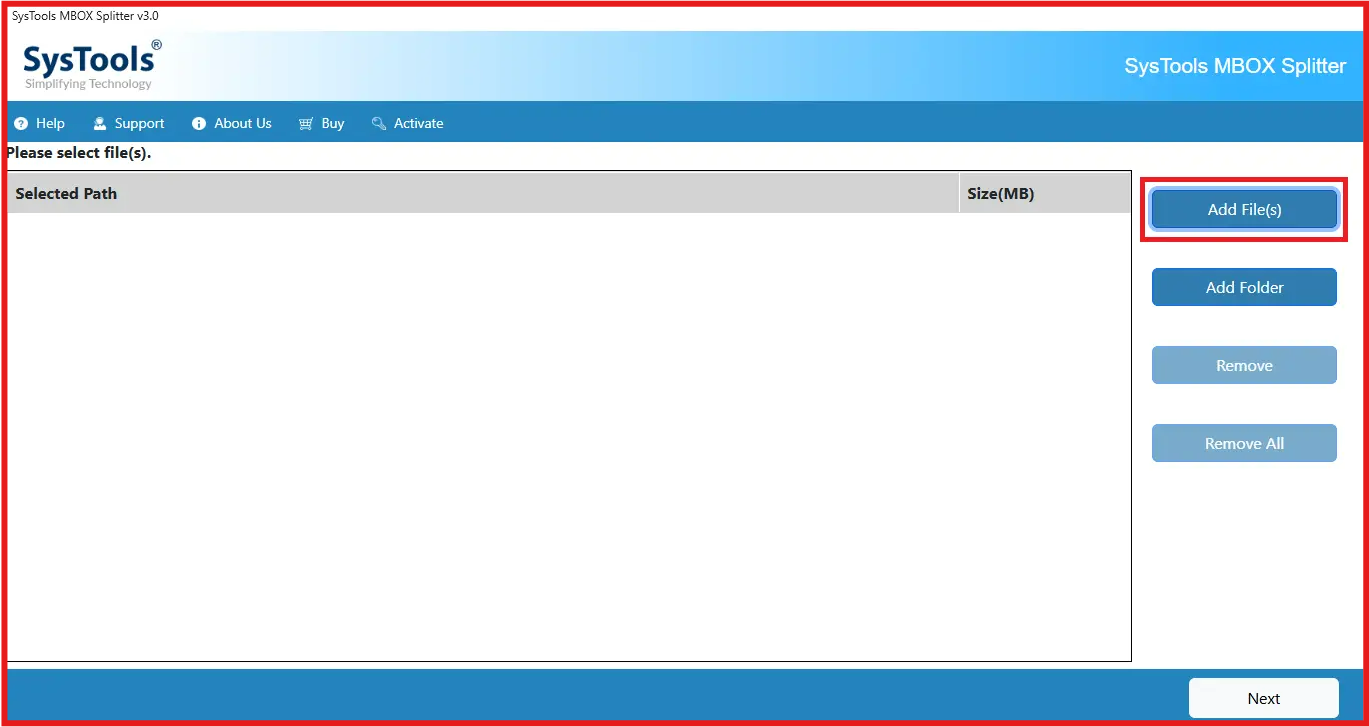
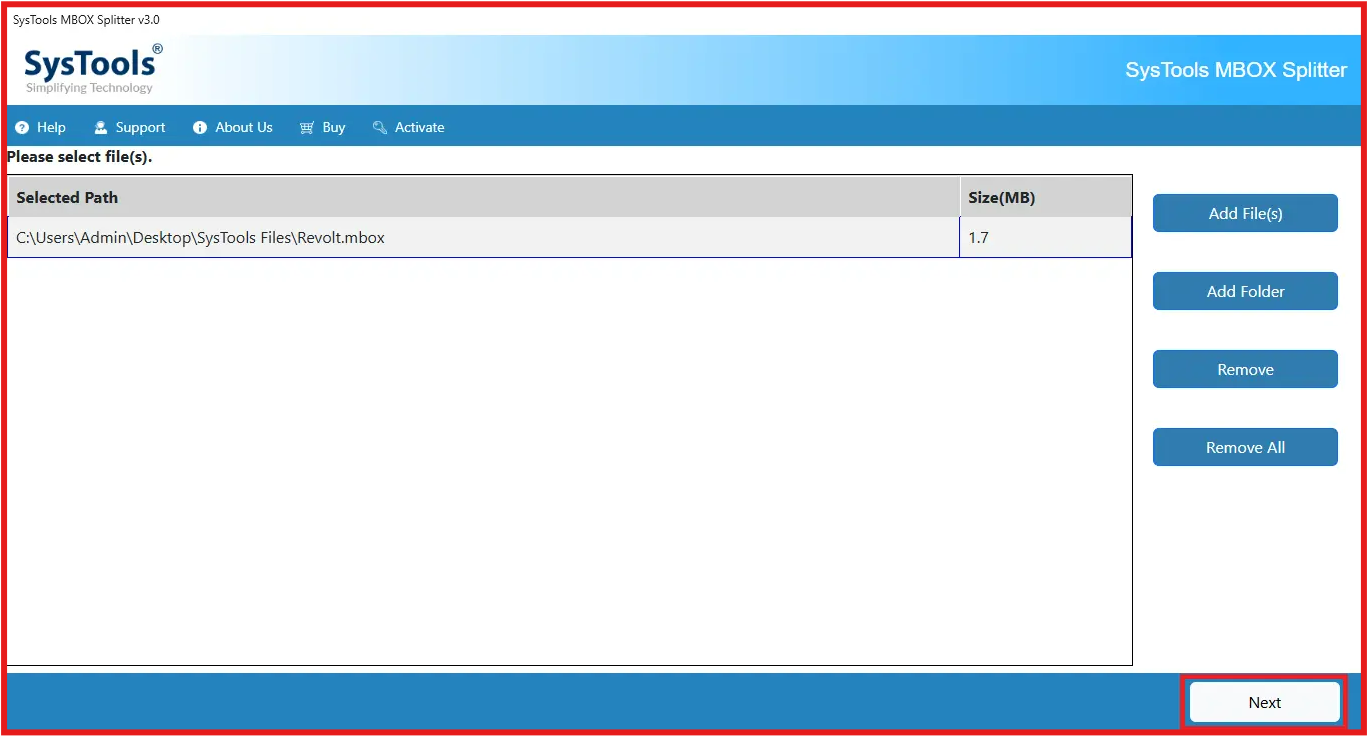
- Verify added MBOX files into software panel. After that hit Next button and proceed.
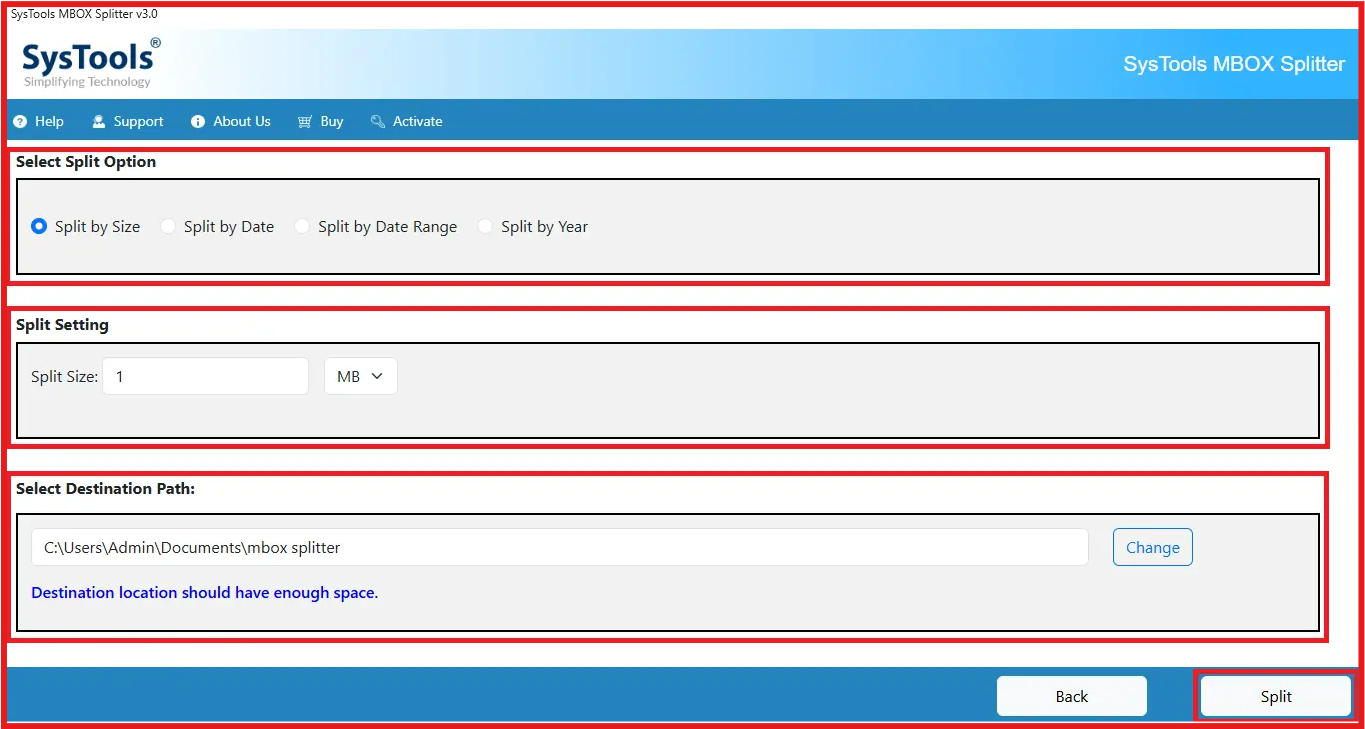
- Here apply the splitting options like: Split by Size, Split by Date, Split by Date Range, Split by Year. After this provide size limit to brak MBOX file. At last browse the path to save output file after splitting MBOX file and hit Split button.
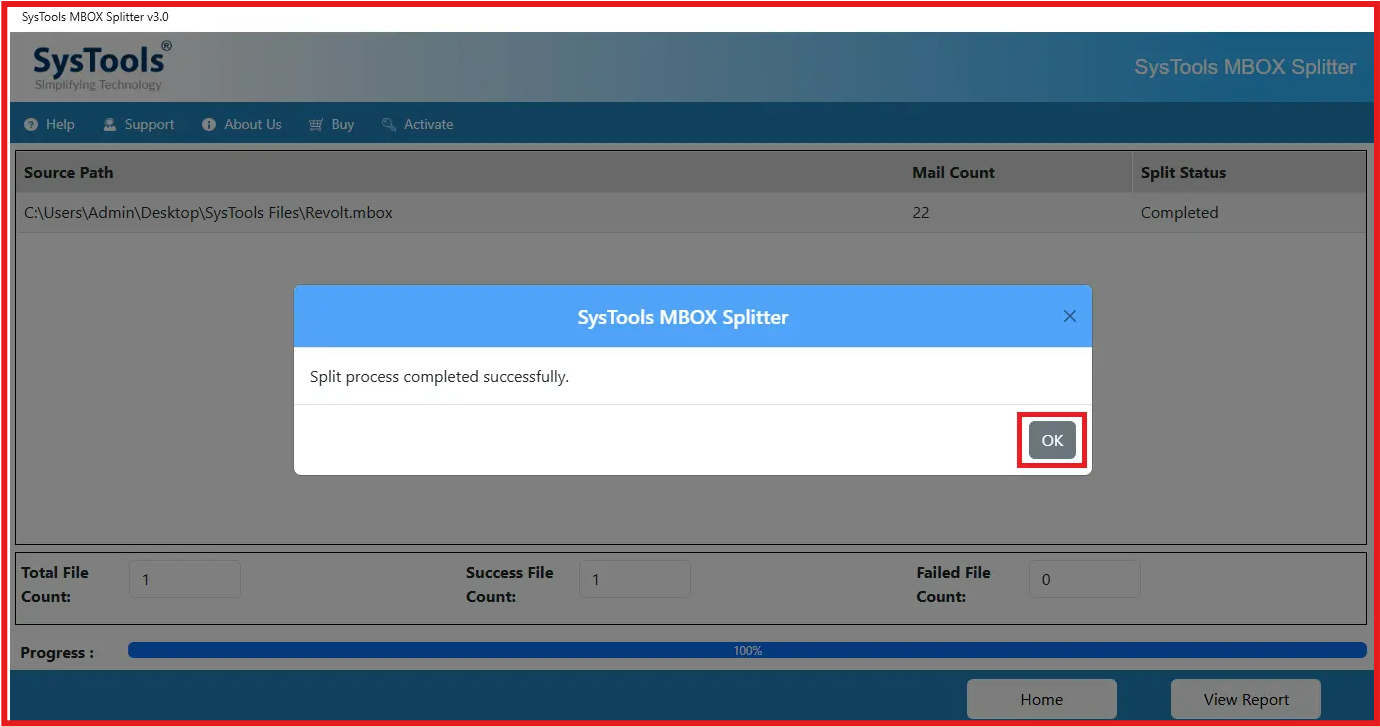
- Software will start the splitting process and notify once the split process is completed.
Manually Split MBOX File Into Smaller Files
If you want to manually split the MBOX file into smaller files. Then this part will prove to be quite right for you. But before trying this solution it is important to know about its disadvantages like it is very long and time-consuming. Along with this, the email client that has the MBOX data file has to be installed on the computer, technical knowledge is very important, and there are chances of data loss. Well, follow the steps mentioned below.
- Activate Mozilla Thunderbird.
- Set up a user account (such as Gmail, Yahoo, Outlook.com, etc.) to launch the program immediately.
- Right-click on the Local Folders item in the left panel of the email client and select Settings from the context menu.
- The path found should be copied to the local directory.
After This Follow Below Steps:
- Activate this system path.
- The MBOX file you want to split should be copied here.
- Restart Thunderbird now.
- The MBOX file is located in the Local Folders section.
- Double-click on Local Folders >> New Folder to create a new folder and give it a suitable name.
- Select half the email messages in the MBOX file folder, then use the right-click menu to move them to the new folder first in Local Folders.
- Then, right-click on the remaining email messages of the MBOX file folder and choose Move To >> Local Folders >> Another New Folder.
- When you move the files, when you access the local directory path on your machine, you should see two new MBOX files (files without extensions) with the same names as your two new folders.
Well, if you want to split the MBOX file without facing trouble. Then, you can move on to the below parts to know the automated approach.
Advantages of Splitting MBOX File
- Simplified migration of email data.
- Flexible backup and recovery options.
- Reduced risk of data loss or corruption.
- Easier handling and management of large MBOX files.
- Enhanced compatibility with email clients or applications.
- Targeted access to specific email messages or subsets of data.
- Improved performance for operations like searching and loading.
So, we have covered all the important points in the above sections. Now, it’s time to know how to solve this problem. Thus, there are two types of solutions available for this task. Manual and Automatic. Both of these solutions have their own advantages and disadvantages, so, let’s go through the following and increasing solutions.
Frequently Asked Questions
Q1: What is the MBOX File Size Restriction?
MBOX files are 4.7 GB in size.
Q2: How Many Times Should the MBOX File Be Compressed?
There are no requirements in this regard. It all depends on the size of the mbox file and how often you receive emails.
Q3: What are The Common Methods to Split MBOX Files?
You can choose any option from Split by Size, Split by Date, Split by Date Range, Split by Year, and Split by Size.
Q4: Will My Emails Get Lost While Spliting MBOX File?
No, if you are using a trusted utility as mentioned above ensures no data loss.
Time to Conclude
Splitting a large MBOX file into smaller parts is an efficient way to enhance email performance and data management. While the manual method may work for smaller files, it is not suitable for heavy-duty MBOX division. Using a professional tool to cut MBOX file ensures complete data integrity, saves time, and simplifies your workflow.