3 Ways to Recover Permanently Deleted Emails from Outlook in 2026


Overview: If you are using the Microsoft Outlook email client in your daily life to send and receive emails, and suddenly some of your important emails have been permanently deleted. Now you have tried many methods to get them but you have failed at all of them. So what would you do in such a situation? That’s why we have given you the answer in this technical blog, in which we have explained the top methods step by step to recover permanently deleted emails in Outlook. So let’s walk through the steps in this blog.
Table of Content – Easy to Find
But before starting, let us know some important points related to this recovering-deleted-emails-in-Outlook task, which will be very easy for us to try. So below we have shown a user query that we have collected from communication sites.
User Query:

Above we have known the user query, now let us take a look at the responses too. So let’s go further down.
What Does “Permanently Deleted” Mean in Outlook?
An email can be removed in several ways in Outlook. Here are some of the most common ways:
- Delete Key: This moves the email to the “Deleted Items” folder.
- Shift + Delete: This command removes the email from the mailbox view instantly.
- Empty Deleted Items Folder: This deletes all email messages stored in that folder.
- Retention Cleanup: Exchange or Microsoft 365 automatically removes the deleted emails after the retention period expires.
Often, users assume that pressing Shift + Delete means that their email is gone forever. However, Outlook usually keeps the deleted items in a hidden Recoverable Items folder for a limited period, so recovery may still be possible.
Recover Permanently Deleted Emails in Outlook – Reasons
There are lots of situations in which users want to recover deleted emails from PST files. So, below we have mentioned cases:
- It is a good idea to clean your mailbox now and then to avoid the errors that Outlook shows. But due to being in a hurry, the email may have been deleted carelessly.
- One of the most prominent reasons is the corruption of PST files. The PST file may have been damaged due to a virus attack or sudden power failure, due to which the user is facing this problem.
- It is also possible that you have given the SHIFT + DELETE command to clear your mailbox. But because of that, your important emails may get permanently deleted.
- In case of data file corruption, even when we work offline with the same file, many problems can arise, causing emails to get deleted.
After knowing the user’s query and reason for recovery, now the time has come for all possible solutions to recover deleted emails Outlook. So, there are two types of solutions available here that will help you to solve this task. So, let’s start with the automated method. Then, we’ll learn about another perspective.
Recovering Deleted Outlook Emails – Automatic Method
You can use this Outlook Deleted Items Recovery Tool to recover permanently deleted emails in Outlook without losing a single bit of information. With this tool, you can easily recover deleted Outlook Contacts, Tasks, Journals, and Notes. ALong with that you can also recover deleted Outlook calendars. Moreover, this tool is the best and most valuable utility to restore soft and hard deleted items and folders from MS Outlook files.
Additionally, this tool is capable of deleting SMIME & OpenPGP encryption from Outlook. Also, it maintains the recovered data items hierarchy. It gives the best option to export permanently deleted Outlook emails into healthy and secure file formats such as PST, PDF, MSG, EML, & HTML.
Steps to Restore Deleted Email Messages in Outlook
- First, download, install, and run the tool on your local system to recover the permanently deleted data.

- Then, click on the “Add Files” option to insert the Outlook PST, OST & BAK files, Scan and load the data file.

- After that, the software provides the deleted email in “Red Color” in the preview section.

- Now, choose the “PST” option as an export type and then, hit on the “Advances Settings“.

- Finally, browse the “Destination Location” to save the resultant files and then, click on the “Export” button.

This is where the automatic method ends. But, still, you are searching for a manual method to recover deleted emails from PST files. Then, the next part is best for you. So, let us proceed.
Manually Recover Permanently Deleted Emails in Outlook
If you are working in an organization then, your Outlook account will be configured with Exchange Server. So, all the permanently deleted emails will be saved in Exchange Server. So, the retention time of emails is saved on the server for 14 days, then after that, they automatically get permanently deleted. Now, you get to retrieve the emails within 14 days without any delay or problem. Now, try the method mentioned below to recover deleted emails Outlook.
Method 1: Restore Hard Deleted Emails from Deleted Items Folder
If your emails are hard deleted in Outlook, you can follow the steps mentioned below to restore all the emails:
- Open the “Microsoft Outlook” program on your PC.
- This will show the Outlook home page. Then select “Deleted Items Folder” from the Email Folder list.
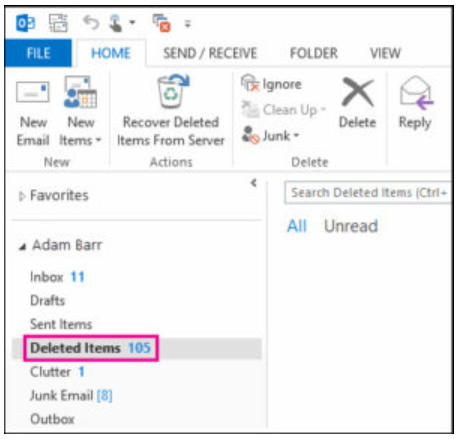
- “Browse” the Deleted Items folder to find your message.
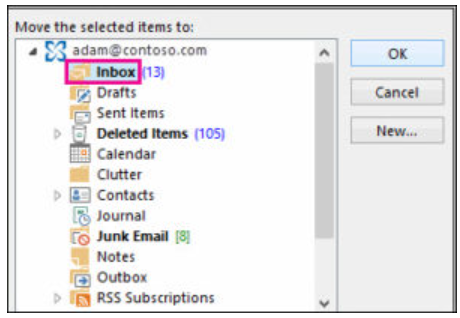
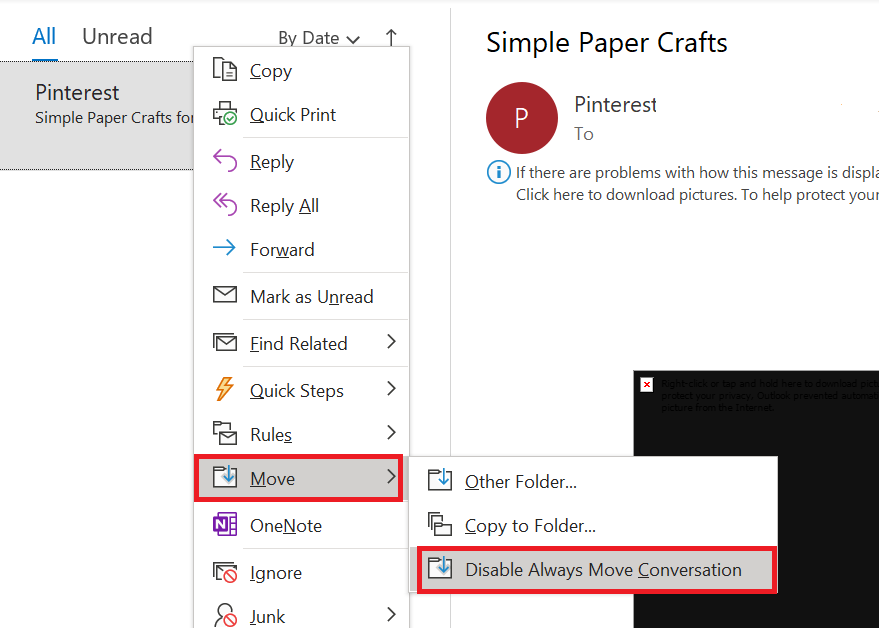
- If you find your email in a folder, select it with a right-click and choose Move >> Other Folder.
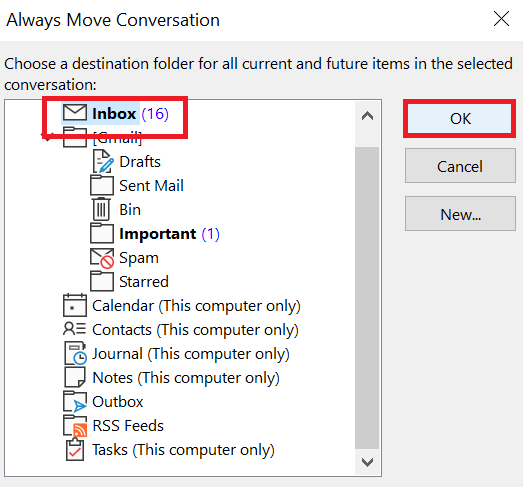
- To return your specific email to the Inbox folder, select the “Inbox” option, and then click the “OK” button.
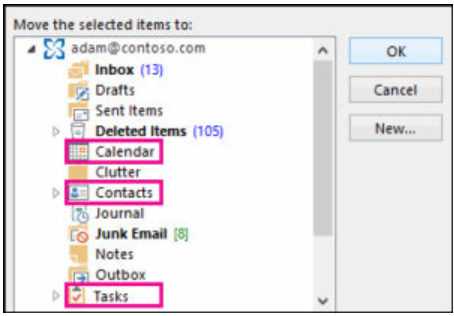
- Follow the same steps if you want to recover calendars, contacts, and other objects from Outlook.
Method 2: Restore Soft Deleted Emails from Outlook
Many times such possibilities arise that the deleted data cannot be recovered through the method mentioned above. So, if the emails are not restored then it may be that you have it may be that you accidentally used Shift + Delete. So, in this situation choose the steps given below:
- Go to the email folder list by opening it in the Outlook program on your system.
- Then, go to the “Deleted Items Folder” option under the “Home” menu.
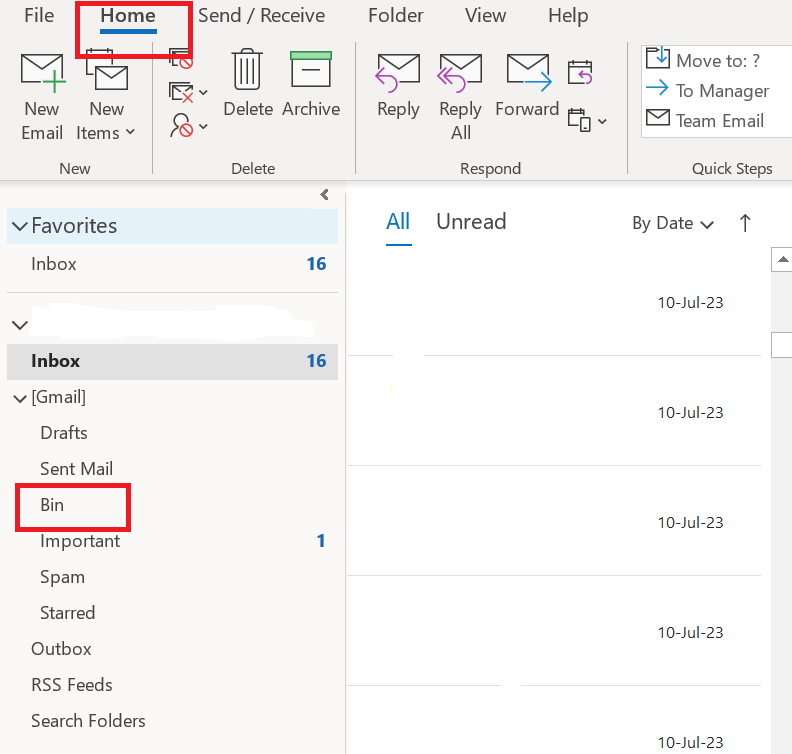
- The “recover deleted items from server” option can be found under the Home tab.
- Select the option for Deleted Items, then select the file or email you want to recover.
- To restore soft deleted emails in Outlook, select the “Restore selected items” option and press the “OK” button.
Note: If you see the “Recover deleted items from server” option is greyed out or you can’t see it, take the following action:
- Verify that you are not working in online mode.
- Make sure you are using an Exchange account.
Time to Wind-up
In this blog, we have shared all the best and tested solutions to recover permanently deleted emails in Outlook. The first one is automatic which is tested by great experts with which you will easily recover deleted emails from PST files without facing any problems. The second is a manual method through which you can solve the problem, though it involves a few more steps/challenges. So, we suggest you try the automated solution.