How to Recover Data from Corrupted NVMe SSD Without Formatting

How to Recover Deleted Pictures from Pen Drive Instantly?
A corrupted NVMe SSD can turn from a lightning fast storage device into a silent panic trigger within seconds. One moment your files are accessible but the next moment your drive appears as RAW, It disappears from File Explorer, throws I/O errors and refuses to boot entirely.
The biggest mistake a number of users make at this stage is they start formatting their SSD just to regain the access. And let me tell you on traditional hard drives this is very risky but on NVMe SSDs it can permanently destroy all your recoverable data inside it because of how SSD memory management works internally.
So today I will tell you the best methods to Recover Data from Corrupted NVMe SSD safely without formatting your drive. You will learn the difference between logical corruption and hardware failure, how NVMe TRIM affects recovery and what are the most safest methods to retrieve your files before they get further damaged.
Why NVMe SSD Recovery Is Different from HDD Recovery
Before you attempt to recover data from corrupted NVMe SSD you need to understand one important fact and that is NVMe SSDs do not behave like traditional hard drives.
A standard HDD stores your data in sequential disks even after deletion the remnants are usually still recoverable until they are overwritten. But an NVMe SSD works differently:
- Uses NAND flash memory cells
- Operates through ultra-fast PCIe lanes
- Relies on firmware-controlled data mapping
- Uses wear-leveling algorithms
- Aggressively executes the TRIM command
Do you know what is the biggest reason well the TRIM command is the biggest reason why SSD recovery becomes too difficult. When Windows formats or deletes partitions on an SSD thereafter TRIM simply instructs the controller to clean all unused flash blocks immediately. And once those cells are wiped internally then no recovery utilities may reconstruct the data.
DO NOT click Format.
As formatting an NVMe SSD can instantly trigger the TRIM operation that causes permanent flash block erasure and once TRIM executes then recovering your files becomes more dramatically harder and sometimes it becomes completely impossible.
If your goal is to Recover Data from Corrupted NVMe SSD then you must preserve the current state of the drive first.
Also Read: How to Recover Deleted Pictures from Pen Drive Instantly.
Signs Your NVMe SSD Is Corrupted
A corrupted NVMe SSD generally shows you warning signs before it get completely inaccessible. Identifying these symptoms early can surely improve the chances of successfully recovering Data from the corrupted NVMe SSD before the corruption gets worse or TRIM completely eliminates all your recoverable data blocks. You may need to Recover Data from Corrupted SSD if you notice the following:
- SSD shows as RAW in Disk Management
- NVMe SSD missing from File Explorer
- “Access Denied” or I/O device errors
- Windows freezes while opening folders
- SSD becomes read-only suddenly
- Random disappearing partitions
- Boot failure after power outage or firmware crash
Logical Corruption vs Physical SSD Failure
| Issue Type | Symptoms | Recovery Possibility | Risk Level |
|---|---|---|---|
| Logical Corruption | RAW partition, inaccessible files, missing drive letter | High | Moderate |
| File System Damage | CHKDSK errors, partition corruption | High | Moderate |
| Firmware Corruption | SSD detected inconsistently | Medium | High |
| SSD Controller Failure | Drive disconnects randomly | Low | Severe |
| NAND Flash Failure | SSD not detected at all | Very Low | Critical |
- Formatting your disk
- Using CHKDSK repair mode
- Any Partition rebuilding tools
- And Firmware flashing utilities
Check Steps to Recover Data from Corrupted NVMe SSD Drive Safely
Check carefully all the manual steps and follow step by step to Recover corrupted data safely from SSD Drive. Each method has been designed with a deep understanding of your specific problem in such a way that you can solve it easily and accurately. So let’s start the process and follow the steps carefully.
Method 1: Hardware and Interface Diagnostics
Sometimes the SSD itself is functional but the problem is the connection path is unstable. So before you decide to use recovery software you must resolve any issues related to hardware communication.
Step 1: Power Off the System
Completely shutting down your PC or laptop is a great way to avoid swapping NVMe drives unless your motherboard explicitly supports it.
Step 2: Change the M.2 Slot
Many motherboards have multiple M.2 slots serving different PCIe lanes and a damaged slot can mimic the symptoms of a SSD corruption. So in this situation you may think what to do? You just need to do the following things.
- Remove the NVMe SSD carefully
- Clean dust using compressed air
- Insert the SSD into another M.2 slot
- Boot into BIOS
- Check if the drive becomes stable
Step 3: Test Using an External NVMe Enclosure
An external USB NVMe slot simply bypasses the motherboard controller issues. This is one of the safest ways to Recover Data from Corrupted NVMe SSD without modifying your partitions. Check below what you need to do.
- Insert SSD into NVMe enclosure
- Connect via USB 3.2 or Type-C
- Open Disk Management
- Check if partitions appear
Step 4: Update NVMe Controller Drivers
Corrupted or outdated drivers can cause access issues. Check what you can do in this situation.
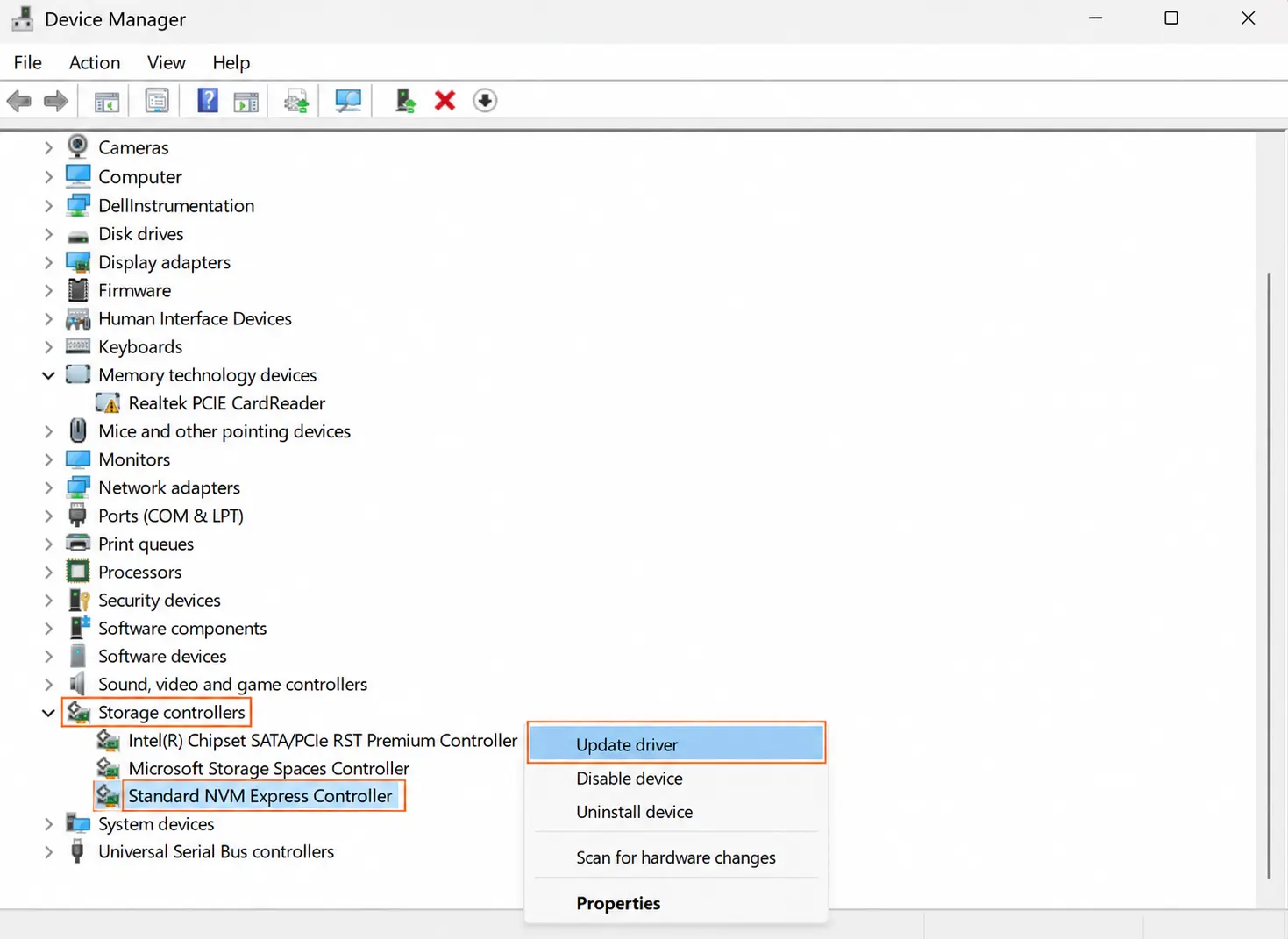
- Press (Windows + X)
- Open Device Manager
- Expand “Storage Controllers”
- Right-click NVMe controller
- Select “Update Driver”
Method 2: Safe Command-Line Identification
Command Prompt can help you identify corruption safely but remember it only helps you if you use it carefully. Some commands are non-destructive and others can permanently modify SSD metadata.
Safe Commands You Can Use
Just open Command Prompt as Administrator and Run the following commands:
- diskpart
- list disk
This will check whether Windows detects SSD or not.
Next Step:
- list volume
This will simply displays:
- RAW partitions
- Missing drive letters
- Volume size
- File system status
- clean
- format
- convert gpt
- create partition
As these commands will overwrite partition structures and can perform TRIM operations.
Check SSD Status Using WMIC
Run: wmic diskdrive get status
Possible results are:
- OK
- Pred Fail
- Unknown
You can simply check if your drive shows repeated failures then you must prioritize data extraction first.
Method 3: Assign or Change Drive Letter Without Formatting
Sometimes Windows cannot access a healthy partition and the reason is only the drive letter assignment is broken.This method can help you Recover Data from Corrupted NVMe SSD when your partition exists but it remains inaccessible.
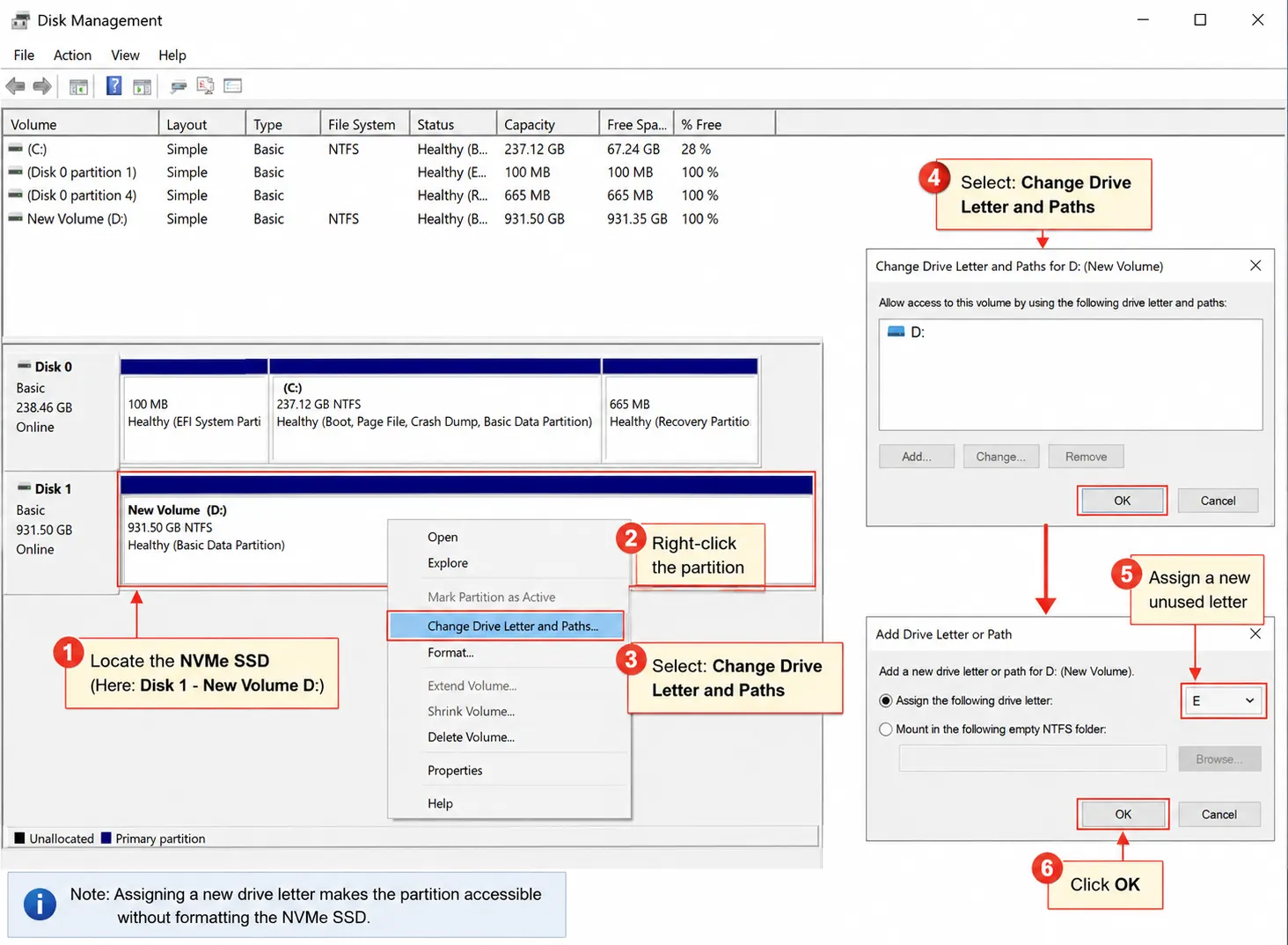
Steps
- Press (Windows + X)
- Open Disk Management
- Locate the NVMe SSD
- Right-click the partition
- Select: Change Drive Letter and Paths
- Assign a new unused letter
- Click OK
If the partition becomes accessible then you should immediately copy all your important files to another storage device.
Download Recover Data from Corrupted NVMe SSD Using Software
When Windows devices cannot access your partition safely then the safest solution is a dedicated Revove SSD Recovery Software as this software provides you a non destructive approach to Recover Data from Corrupted NVMe SSD without formatting the drive.
The software scans inaccessible SSD sectors, rebuilds damaged file system structures and extracts recoverable data to another secure location. Just download and install the software and recover your corrupted data safely.
Frequently Asked Question
Q1. Why NVMe SSDs Suddenly Become RAW?
An NVMe SSD becomes RAW due to power failure, corrupted NTFS metadata, firmware crashes, malware damage, unsafe removal or due to failed Windows updates that simply affect the file system. RAW status does not always mean that your data is permanent loss. You can still Recover Data from Corrupted NVMe SSD if TRIM has not erased the affected flash blocks.
Q2. Can You Recover Files from a Dead SSD?
Yes recovery is sometimes possible if the SSD controller still responds and the NAND flash memory remains accessible despite corruption or firmware related issues. An SSD that dies completely due to a controller failure usually requires recovery techniques such as firmware reset, chip-off reset or hardware recovery.
Q3. Should You Use CHKDSK on a Corrupted NVMe SSD?
No, because CHKDSK can modify corrupt file system structures and this can further worsen corruption on unstable NVMe SSDs as it may also trigger additional write operations or delete entries. If you want to Recover Data from a Corrupted NVMe SSD then you should recover the files first before attempting repair commands like CHKDSK.
Also Read: How to Recover Deleted Files from External Hard Drive safely.
Final Takeaway: Protect NVMe SSD Data Before the Next Failure
NVMe SSDs are extremely fast compared to traditional ones and due to data corruption and TRIM-related cleanup processes there can reduce recovery chances within just a few minutes. By adopting a simple backup strategy, regularly monitoring the SSD’s health and preventing sudden power outages you can easily protect your important data.
Most importantly the moment corruption occurs you must stop using your drive immediately as any new write operation will reduce the chances to Recover Data from Corrupted NVMe SSD successfully.