How Google Takeout Works- Know it Here!

Blog Overview: Google Takeout allows users to export and download copy of their data from Google products such as Gmail, Google Drive, Google Photos, Contacts, Calendar, and YouTube. But how Google Takeout work:
- What data can you export,
- What happens after you create an archive?
In this guide, we will explain how Google Takeout works step by step, including how to select your data, create an archive, choose delivery method, and download your exported files.
What is Google Takeout?
We all know very well about Google and that Google collects our data by tracing it. And also we can store our data in Google Drive, Google Photos or Gmail, etc. That’s why Google Takeout is an export tool that allows you to download your data to local storage or transfer it to another service.
If you are working for any business, organization, or educational institute, you must have heard about this useful tool in case any employee in the company wants to transfer his data to another account when he leaves the company. It is commonly used. Plus it’s a quick solution that frees up disk space by downloading data from Google Drive or storing old files.
What Happens When You Create a Google Takeout Export
When users creates Google Takeout export, Google first prepares copy of data you selected from your account. You can choose among individual Google products and, where available, specific data within a product.
Once data is selected, you choose format, frequency and how Google should deliver you data, such as download link by email or data to be added to drive..
Google then processes your export and creates an archive containing selected information. Exact file format depends on Google service and type of data that is being exported, so Gmail, Google Photos, Drive, Contacts, and other services may not all use the same format.
One important point is that Google Takeout is an export tool, not a deletion or continuous backup service. Downloading your data will not remove original information from Google’s servers. Archive represents data available during export process, so some changes made between request and archive creation may not appear in final file. Large exports can take from minutes to several days to become available.
How Google Takeout Works?
If you want to export all your data like photos, contacts, emails, and attachments from your Gmail account to any other local place for free, then for this we have given you the step-by-step process below. By following this you can export data from your Gmail account.
Method of Downloading Google Data with Google Takeout
- Sign in to your Google Account and open Google Takeout.
- Click Deselect all and select Google services and data you want to export.
- Scroll down and click “Next step”.
- Choose your preferred delivery method, export frequency, file type and size.
- Click “Create export” to start preparing your Google Takeout archive.
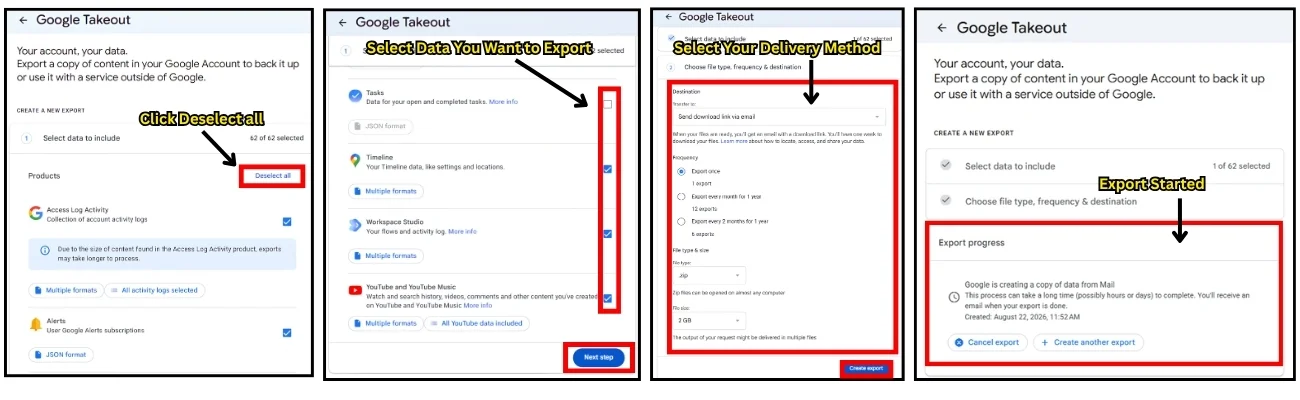
- Wait for Google to finish creating archive.
- Open the notification/email from Google and click the download link save your exported data.
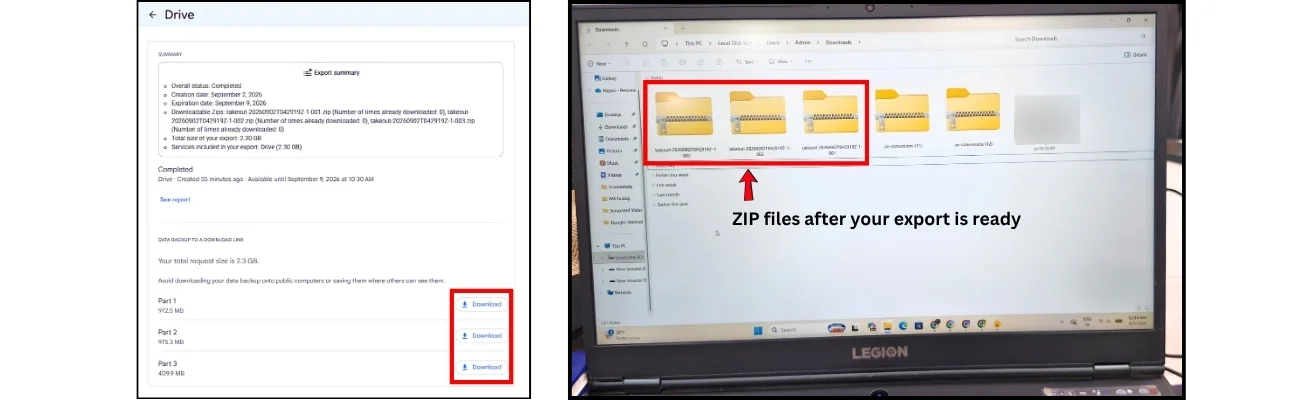
- Extract the downloaded archive on your computer and access the exported files/data
So by following all these steps, you can extract data from your Google account. But along with Google Takeout being free, it also has some drawbacks which have been explained below.
Related Read: How to Find Archived Emails in your Gmail
How Long Does Google Takeout Take?
The time required to export your data is entirely dependent on a variety of factors, including the volume of data being exported and the speed of your internet. If you are only exporting a few things or little files, it could take a few minutes, but if you’re exporting a significant large volume of data, such as emails or files from your Google Drive, it could take a few hours or maybe a day.
When you start the export process, Google Takeout show you how long it will take based on the items you want to export. This estimated time can help you plan the things ahead and know when your export data will be available. When the export is finished, you will notify by the Google. Then you may download the exported data.
If you’re in a rush, consider exporting smaller batches of data to speed things up. Remember that the speed of your internet connection can determine how long it takes. So, if you have a fast connection, things may go more quickly. Overall, Google Takeout is a useful tool, but you should be patient while it does its work, especially if you’re exporting a large amount of data
Understanding the Google Takeout Restrictions
- When exporting large files or folders you may end up with incomplete downloads.
- You cannot create files for multiple users at the same time.
- Only the account owner can create a takeout file. If an administrator needs to archive and download, the administrator must log in to the particular user’s account to create the archive.
- Sometimes when an administrator tries to create a user file, Google Takeout can be disabled.
- The download progress is interrupted if Internet access is lost and cannot be resumed.
So we have learned about all the steps, with the help of which we can export data from Gmail to Google Takeout. Along with this, we have also come to know about its many limitations. Now, we will know about an alternative solution to overcome these limitations, so let’s go ahead.
Related Read: How to Save Gmail Emails with Attachments as PDF
Try this Alternative Solution to Export Google Data
How Google Takeout Works, as described above, but it also has some drawbacks. To overcome these obstacles, you can try solid solutions like the Gmail Backup Tool. It is an all-in-one backup tool that allows you to back up all the data in your Gmail account such as email, contacts, calendar, and documents.
The backup file formats generated by this backup tool are PST, EML, MSG, PDF, and MBOX formats. You can also download all Gmail emails on your computer using this software. It supports Outlook Gmail, Windows Live Mail, and Apple Mail Backup. Manages Internet bandwidth for a smooth and reliable backup. These are the features of the tool. This software can easily back up data in case of a Google shutdown or accident. Also, there is no need to install additional software for backup Gmail email with this software.
The Essential Features of This Utility
- This program provides a special functionality to maintain the folder structure of the Gmail account after the backup is complete.
- Additionally, all meta properties are stored with each email download, maintaining data integrity.
- Also allows email attachment backup to a PDF file. The name of the PDF file created matches the subject line of the email.
- At the same time, any user can use this tool according to his need, whether he is from a technical background or not, as well as its user interface being very simple and it is more reliable.
Concluding Our Discussion
In the above post, we discussed how Google Takeout works. Additionally, there are some drawbacks to using Google Takeout, so to overcome these drawbacks and help the users, we have shown a smart way to back up Gmail emails. With the help of this, you can do difficult work in just a few clicks and without losing your important data.
Common Google Takeout Frequently Asked Questions
Q1: Is there a Better Solution than Google Takeout to Successfully Export My Data?
Ans: Yes, if you are searching then you have done better than Google Takeout which can export your data without loss and limitations. That’s why I recommend that you use third-party tools.
Q4: Is Metadata Retained by Google Takeout?
Ans: Google Takeout doesn’t keep metadata. It is a data export tool that allows the data associated with Google services to be exported to a file. Google Takeout is available to extract and export data from users’ accounts.
Q5: Can Google Takeout give me my data by exporting it to PST file?
Ans: No, Google Takeout does not export your data in PST file format, it only exports data in MBOX file format. If you want your data to be exported to PST, then for that you should use the tool mentioned in this blog.