Export Emails From Thunderbird and Save Locally

Thunderbird is a mail client that allows users to manage single or multiple email accounts (profiles) at one interface. It is free and available for Windows, Mac, and Android OS. Managing emails in Thunderbird is quite easy. Here in this post, we will discuss all possible solutions to export Thunderbird emails and save them locally.
Thunderbird itself provides Import/Export options by adding the ImportExportNG addon. The user can use this and save all emails from Thunderbird. Along with this, there is third-party software also available to back up Thunderbird emails with advanced file filters and export options.
Let’s begin the export Thunderbird emails process without any further ado.
Blog Content – Easy to Find
So, let us explore some genuine USER QUERIES from Spiceworks to understand users’ needs to export all emails from Thunderbird.
Export Thunderbird Emails – Quick Way
Step 1: Run the below-mentioned converter on your system
Step 2: Then, hit on the “Add File” & choose “MBOX” files
Step 3: Now, “Preview” emails with attachments before conversion
Step 4: Finally, click on the “Export” to convert MBOX files
Query 1: How to Export Thunderbird Email Accounts
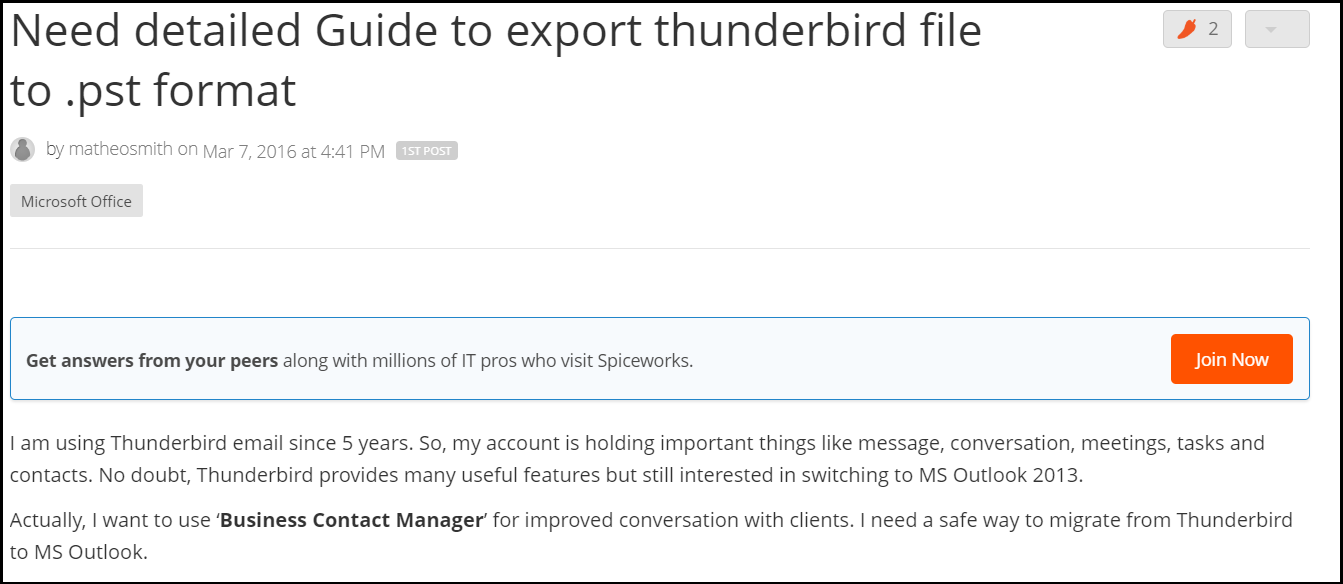
Query 2: Export Thunderbird Emails and Save As Document
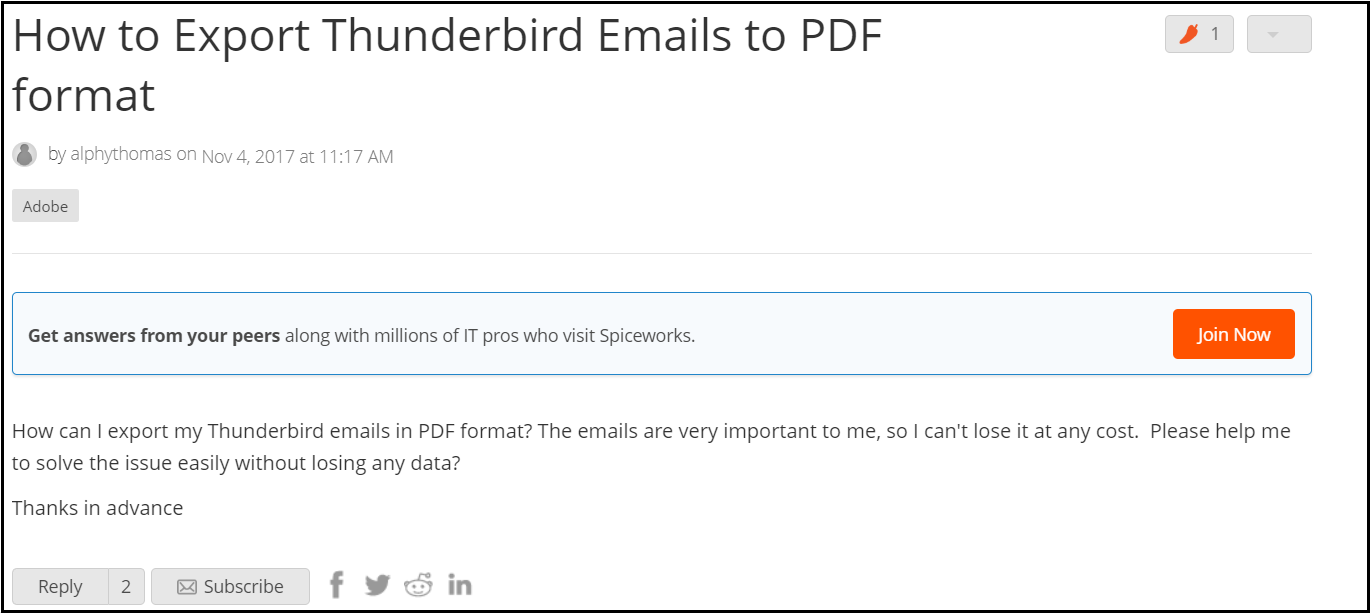
It is clear from the queries that users are often looking for ways to convert Thunderbird exported emails as per their requirements. They may look for different file formats, but in the end, a question arises: Is there a way to do so?
We will explore some indigenous methods to transfer emails from Thunderbird and in a variety of formats as well. Just keep reading and find the method that fits your circumstances. Thus, there are two types of tech tools available to thunderbird export all emails. First is the manual method, and second is the automated method. So, let us start with the first approach to finish this task.
Method-1: Export Thunderbird Emails Manually
If you are looking for a built-in option to export all Thunderbird emails. So, we are going to explain all the steps in this section. But before starting the solution, pay attention to some things like keeping a backup of your data, checking the internet, and keeping Mozilla Thunderbird installed and a user account configured on the computer. Follow the steps mentioned below.
- Start Thunderbird.
- Click on the mailbox folder whose emails you want to export.
- Select the email messages.
- Use Ctrl+A to select all the emails present in the mailbox folder.
- Right-click on a selected message and select “Save As” to export emails from Thunderbird.
- Choose the folder to store the exported files and click “Select Folder”.
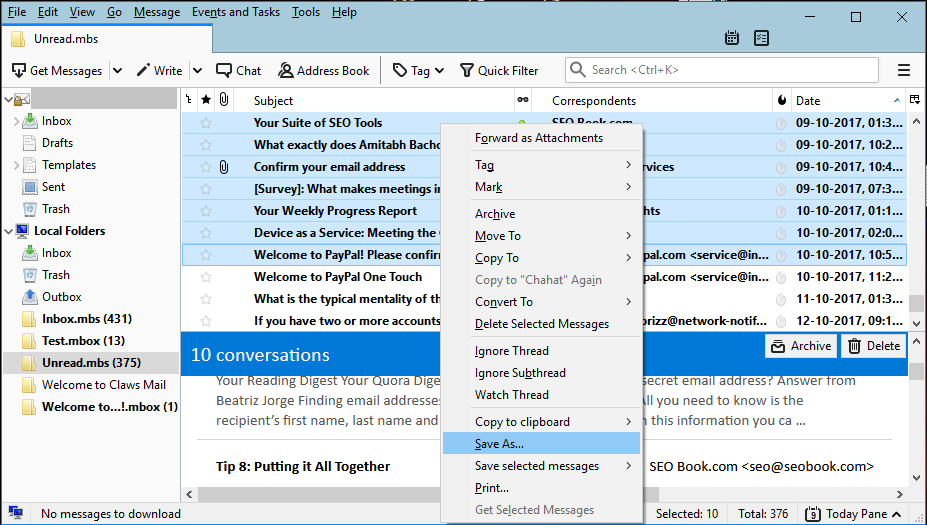
Note: This method is applicable to most versions of Thunderbird. Also, using this method, one can save Thunderbird emails as EML files. An EML file is generated for each email message having same name as the subject of the email.
Method-2: Export Emails From Thunderbird Using Free Add-On
The free Thunderbird add-on is more convenient to use as it provides more options both in terms of selecting the emails as well as saving them. The first step is to download the “ImportExportTools” add-on. It can be done by going to Tools > Add-ons and searching for “importexportTools NG” in the search bar. Now two separate editions will be available to install here. Download the one that’s compatible with your Thunderbird version. The process to convert emails from Thunderbird is:
- Select the mailbox folder, such as the Inbox, to export all emails from Thunderbird.
- Right-click on it and select ImportExportToolsNG > Export folder.
- Choose the folder to save the exported file and click Select Folder to export all emails from Thunderbird.
- All the email messages in the folder are kept in a single MBOX file in Thunderbird in order to export emails.
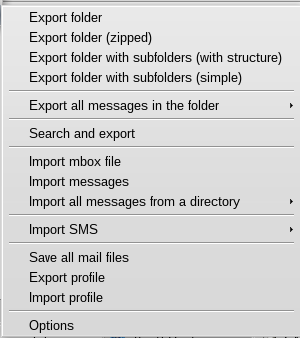
Note: This method is also applicable to multiple mailbox folders. You need to select multiple folders at once and right-click to proceed with the process. Also, the Thunderbird add-on allows exporting of data in the following file formats: EML, HTML, Plain Text (TXT), Spreadsheet (CSV), MBOX, and PDF.
To export Thunderbird emails in multiple file formats, follow these steps:
- Select the email messages either manually or with the Ctrl+A key.
- Right-click on one of the selected messages.
- Choose the Save selected messages option and choose the desired format.
- Browse the location to save the file and click Select Folder.
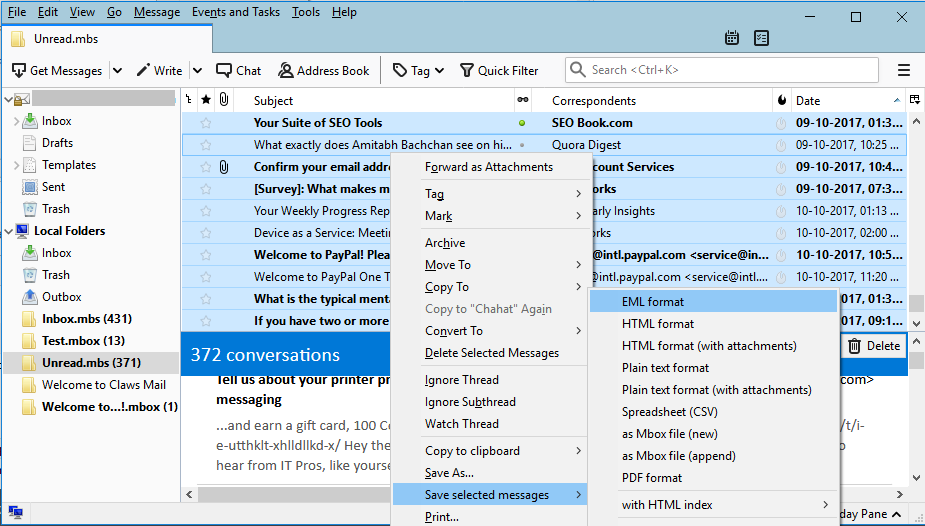
Here all the manual steps end. If you have faced drawbacks while following the manual solution, such as maximum time-consuming, data loss, technical knowledge, etc. If you are bothered enough by this solution, follow the automated method mentioned below.
Method-3: Export Emails From Thunderbird in Multiple Formats
In all the above manual methods, there are multiple limitations and time-consuming steps. To overcome all such challenges, Revove developed the advanced Thunderbird MBOX Converter Tool. Use this software and easily export Thunderbird emails and save them into multiple file formats (EML, MSG, PST, NSF, PDF, CSV, HTML, EMLX).
The software is equipped with auto-detect options. Choose this option to add Thunderbird profiles into software panel automatically. Software will list Thunderbird configured profiles. Simply select the profile, and it will automatically save all emails from the Thunderbird profile.
Download this automated software from the link below, download and start the backup Thunderbird emails process.
Additionally, this utility exports MBOX / MBX / MBS files in a smart way without losing data. The tool also maintains folder hierarchy and data integrity. Moreover, it saves Thunderbird emails and saves them in PDF file format with Settings for Email Headers, Margins, Orientation, and Page Size. Furthermore, this software works with all Windows and Mac OS versions.
Stepwise Guide – How to Use
- Download and install the software. After this, click “Add File” to export emails from Thunderbird.

- Then, select “Mozilla Thunderbird” and click “Default Profile Configured” to export all emails from Thunderbird.

- Afterthat, preview Thunderbird emails in the interface.

- Finally, select the file format and click the “Export” button to export Emails from Thunderbird.

- Have completed the process to export emails from Thunderbird.

Conclusion
Exporting emails from Thunderbird is a straightforward process that allows you to safeguard your valuable email data or migrate it to another email client. By following the step-by-step guide outlined above, you can export Emails from Thunderbird individually or entire folders, choosing between file formats such as EML or MBOX. Remember to keep your export in a safe location to ensure they are readily accessible whenever needed to export Thunderbird emails.
Frequently Asked Questions
Q 1: How Can I Back up the Emails and Folders from Thunderbird?
Ans: Yes, you can export all emails from MBOX. For this, click on any email folder, such as the Inbox or another folder, in the MBOX that you want to back up. Choose emails. To choose several emails, press the SHIFT key, or press CTRL+A to select all emails for backup. right-click, and select Save as.
Q 2: How Can I Connect Outlook and Thunderbird to Sync My Email?
Ans: Select POP and IMAP under Mail > Sync Email. Choose Yes under Pop settings > Let devices and apps use POP, then choose Save. Select Email under Accounts > Set up an account in Thunderbird. Your name, email address, and password must be entered, then click Continue.
Q 3: How Can I Transfer My Thunderbird Emails to Windows Mail?
Ans: Select with the right click the folder containing the emails you want to export. Choose Import/Export -> Export all messages in the folder to EML Format from the context menu, such as Inbox, Sent Mail, etc.
Q 4: How Do I Transfer My Thunderbird Address Book to Outlook?
Ans: First, create a CSV file by exporting your Thunderbird address book. import it into Outlook after that. To do this, open the “Address Book” in Thunderbird and choose “Tools” then “Export“. The file should be saved in LDIF format. Next, in Outlook, click “File,” “Open & Export,” and “Import/Export.” Select CSV as the file format and “Import from another program or file“. Complete the process by following the prompt.