Copy and Paste Multiple Email Addresses from Outlook to Excel

If you are trying to figure out how to copy email addresses from Outlook to Excel then you are probably facing one of these common problems – Outlook exports only saved contacts, recipient email addresses are missing or if you are manually trying to copy hundreds of email IDs then this will take far too much time. Many users also struggle with duplicate email addresses, messy Excel formatting and missing To, CC, or BCC recipients during the export. You can check a user query and frustration below.
“I have more than 5,000 emails in Outlook and need all sender email addresses in Excel sheets for marketing and outreach campaigns. However manually copying each of those email addresses is not practical so I am looking for a quick way to understand how to copy and paste multiple email addresses from Outlook to Excel without missing any contacts or spending hours on manual work.”
This becomes even more frustrating when you are working with large Outlook mailboxes, Outlook 365 accounts, shared mailboxes, your old PST archive files and customer or marketing email lists. In most of the cases users are not just only trying to export contacts. In fact they want to:
- copy sender email addresses
- extract recipient email lists
- export To, CC, and BCC addresses
- create clean mailing lists in Excel
- remove duplicate email IDs
- organize Outlook email data properly
But the main problem is Outlook does not provide a simple built-in option to export all mailbox email addresses directly into Excel. For this reason many users eventually seek faster and more reliable ways to extract Outlook email addresses without having to spend hours performing manual copy and paste work.
In this guide you will find all the best methods to export Outlook email addresses to Excel using manual techniques and easier automated approaches for large mailbox data.
Table of Contents – Easy to Find
The Most Common Email Extraction Problems in Outlook
| Common Problem | Why It Happens |
|---|---|
| Outlook only exports saved contacts. | The email addresses of recipients in emails are usually skipped. |
| Manually copying and pasting email addresses takes up too much time. | Large mailboxes contain thousands of duplicate addresses. |
| Extracting CC and BCC recipients is difficult. | Outlook does not have a direct function for bulk extraction. |
| Email lists become messy in Excel. | Duplicate addresses and formatting issues are common. |
| Outlook 365 export options feel limited. | Modern versions of Outlook simplify advanced mailbox exports. |
| PST archives contain years of emails. | Manual extraction from old Outlook files becomes difficult. |
| Email lists that are exported frequently need to be cleaned. | Invalid formatting and empty rows appear in Excel. |
Why Outlook Email Address Export Is Difficult
Many users assume that Outlook can automatically export all email addresses but in reality Outlook mainly exports saved contacts.
It normally does NOT export correctly:
- recipient email addresses
- non-contact emails
- To/CC/BCC lists
- mailbox conversation addresses
This becomes frustrating when users need the following:
- customer email lists
- recipient reports
- mailing lists
- Outlook email exports for Excel
particularly from large mailboxes.
Manual vs Automated Email Address Extraction
| Feature | Manual Method | Automated Extraction |
|---|---|---|
| Copy a few email addresses | Yes | Yes |
| Extract bulk recipient emails | Difficult | Easy |
| Export To/CC/BCC addresses | Limited | Yes |
| Remove duplicate email IDs | No | Yes |
| Handle PST archives | Difficult | Yes |
| Export clean Excel-ready data | Limited | Yes |
| Suitable for Outlook 365 | Limited | Yes |
| Time Required | High | Much Faster |
From this table it is very clear that if you are dealing with small mailboxes well then manual methods may work temporarily for you. But if you have larger Outlook mailboxes then automated extraction is faster, cleaner and more practical solution for you.
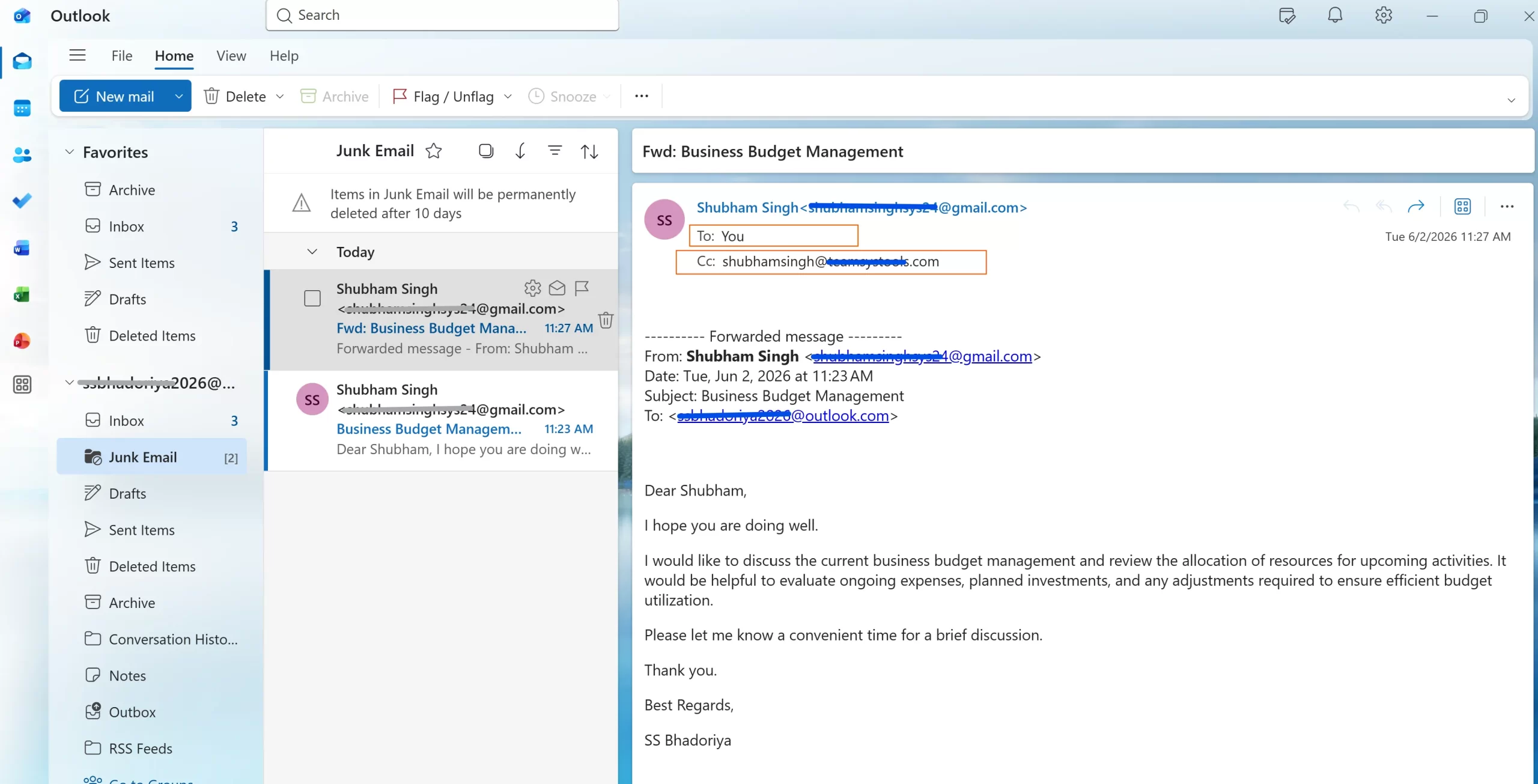
Method 1: Copy Email Addresses Manually From Outlook
This is the simplest method for extracting only a small number of email addresses.
Steps
- Open Outlook
- Open the email message
- Copy addresses from:
- To
- CC
- BCC
- Paste them into Excel
Problems With Manual Copy Paste
While this works for a few emails, users quickly encounter problems such as:
- duplicate addresses
- broken formatting
- invalid separators
- hidden recipient addresses
- repeated email IDs
Some of the users feel manual copy paste is a headache for them also it is very time consuming for:
- large Inbox folders
- Sent Items
- archived mailboxes
Method 2: Export Outlook Contacts to CSV
Outlook features a built-in function for exporting contacts.
- You Need to Open Outlook
- You need to Look for: File → Open and Export → Import/Export
- Select: Export to a File
- Choose: Comma Separated Values (CSV)
- Select the Contacts folder
- Save the file
Important Limitation
This method exports only saved Outlook contacts and It does NOT properly extract:
- recipient email addresses
- sender lists
- mailbox conversation emails
- To/CC/BCC recipients
This is why many users still cannot find the actual email addresses they need. You can also know how to Recover Deleted Contacts From MS Outlook in 2026.
Best Method to Copy Email Addresses From Outlook to Excel
This is one of the most important and secure methods that every user needs. So if you have medium or large mailboxes then the perfect solution is Revove Outlook Email Address Extractor. Download and install this software to quickly extract email address from Outlook. This is usually the most efficient and powerful approach as the tool is designed specifically to:
- extract sender email addresses
- collect recipient lists
- export Outlook email addresses to Excel
- remove duplicates automatically
- scan PST files and mailbox folders
This approach is especially useful when most of the business users need:
- clean and Excel ready data
- bulk email extraction
- recipient list exports
- Outlook 365 mailbox extraction
How to Use This Software?
- You just need to Download and Install the Software in your system.
- Add Outlook Data and files from your system. You can OST/PST/BAK and MSG/OLM file formats.
- Now you can select properties that you want to extract like To, From, CC, BCC and all other options you can simply choose.
- Select export option and just click on extract option to export emails to excel.
How to Copy and Paste Multiple Email Addresses From Outlook to Excel
Many users specifically ask for this. They just want to know how they can copy and paste multiple email addresses from outlook to excel because they want faster bulk extraction. So instead of copying addresses one by one:
- multiple mailbox folders
- recipient lists
- Outlook conversations
This can simply be processed together using automated extraction.
How to Extraction All Email From Outlook 365
Outlook 365 users frequently encounter additional restrictions as Microsoft has simplified many mailbox export features. You can check below all common problems:
- incomplete recipient exports
- missing mailbox addresses
- duplicate entries
- limited contact-only exports
Common Outlook 365 Export Issues
| Problem | Result |
|---|---|
| Contacts-only export | Recipient emails missing |
| Shared mailbox limitations | Incomplete extraction |
| Duplicate addresses | Messy Excel lists |
| PST archive complexity | Difficult manual scanning |
| Limited export controls | Missing mailbox data |
For this reason many Outlook 365 users prefer automated extraction methods for large scale recipient exports.
Also know: What are the ways to Recover Permanently Deleted Emails in Outlook safely.
Closing Thoughts
Managing hundreds or even thousands of contacts manually can be frustrating for any of you. But once you understand how to copy and paste multiple email addresses from Outlook to Excel, organizing them, analyzing correctly and reusing email data becomes much easier. You just need to choose the method that best fits as per your needs which helps you save your time while keeping your contact information accurate and accessible.