How to Convert MBOX Files to CSV: Step-by-Step Guide

To convert MBOX to CSV files, load your MBOX files into platforms such as Mozilla, Thunderbird, or use an offline converter tool and choose your export option as CSV. This will export your MBOX files to CSV format. The manual methods are free of cost but can be slow for bulk files whereas a converter tool is faster, more reliable when comes to multiple file processing, thus providing you with cleaner results.
In this guide, you will get to know about the file formats, why and how we convert them using different methods and tools, their comparison, and at last some frequently asked queries based on your everyday problems with files.
What is an MBOX File?
An MBOX file is a plain-text file that is used to store multiple email messages in a single file, storing each message one after another. Email platforms such as Mozilla, Thunderbird, Apple Mail, and Gmail use this file format to store the messages.
What is a CSV File?
A CSV file is a plain-text table, where each row is a record and commas are used to separate columns. You can open a CSV file in Microsoft Excel, Google Sheets, databases, and CRM platforms.
Why Convert MBOX to CSV?
Converting MBOX to CSV enables you to use your email data outside an email client so that you can analyze, share, or load it into your business software.
It helps you to –
- Analyze your email data on other platforms such as Excel or Google Sheets
- Make a contact lists from the data
- Import data on marketing or business platforms
- Keep the record usable for audits or legal work
- Migrate the data easily or keep it in a readable format like CSV
What are the Methods to Convert MBOX to CSV?
You can convert your MBOX file into CSV format using both manual and software method, Their benefits and limitations are explained below-
Method 1: Manually convert MBOX to CSV for free
The manual method is absolutely free of cost, but it takes more efforts and time of the user, and usually suitable for small files. You convert MBOX to CSV manually using following options-
Option 1: Thunderbird with ImportExportTools NG
- Install Thunderbird (free) on your device. You may or may not add an email account.
- Install add-on manager ImportExportTools NG from Thunderbird.
- Add your MBOX file that you want to convert in CSV.
- Right-click on the imported folder and click on Export option and then click on Spreadsheet (CSV).
- This will convert your MBOX file in CSV format.
- Now, you can open your saved file in Excel or Google Sheets.
Option 2: Python Script
import mailbox

import csv

from email.header import decode_header, make_header

def decode(value):

return str(make_header(decode_header(value))) if value else ""

def get_body(msg):

if msg.is_multipart():

for part in msg.walk():

disposition = str(part.get("Content-Disposition"))

if part.get_content_type() == "text/plain" and "attachment" not in disposition:

payload = part.get_payload(decode=True)

if payload:

return payload.decode(part.get_content_charset() or "utf-8", errors="replace")

else:

payload = msg.get_payload(decode=True)

if payload:

return payload.decode(msg.get_content_charset() or "utf-8", errors="replace")

return ""

mbox = mailbox.mbox("input.mbox")

with open("output.csv", "w", newline="", encoding="utf-8-sig") as f:

writer = csv.writer(f)

writer.writerow(["From", "To", "Cc", "Subject", "Date", "Body"])

for msg in mbox:

writer.writerow([

decode(msg["From"]),

decode(msg["To"]),

decode(msg["Cc"]),

decode(msg["Subject"]),

msg["Date"],

get_body(msg).replace("\n", " ").strip(),

])
Note – Replace your actual file with ‘input.mbox’, run the above script, and open ‘output.csv’in suitable platform.
Limitations of Method 1: Manual converting MBOX to CSV
- Converting large files can be slow or unstable with these methods.
- Python method requires coding skills which can be difficult for a person with non-tech background.
- There is no filter option for selecting date range, sender, or folder.
- You can get broken characters in output file.
- There are limited fields in Thunderbird’s CSV export option.
Method 2: MBOX to CSV Converter Tool (Recommended)
For large files, batch-processing, or business use, download a professional tool like Revove MBOX converter software that can quickly convert your files from MBOX to CSV format. It is a safer choice as it reads MBOX files directly, eliminating the need for any coding skills or Thunderbird.
How to convert MBOX to CSV with Revove Tool
- Download and install the MBOX to CSV converter on your Windows or Mac from their official website.

- Click Add File or Add Folder option to add one or multiple MBOX files to convert.

- Take a preview of your uploaded files to confirm they loaded correctly.

- Select the export format: in this case, click CSV.
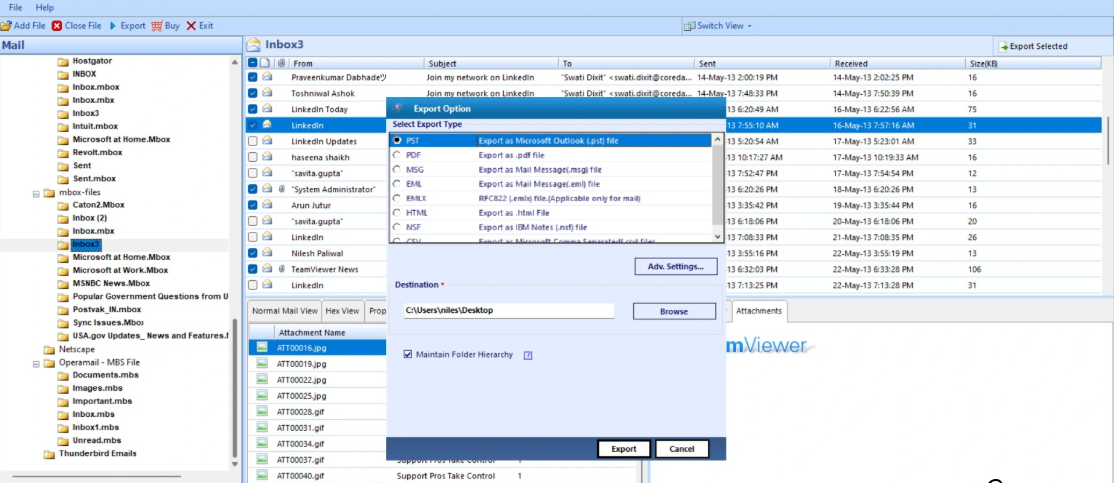
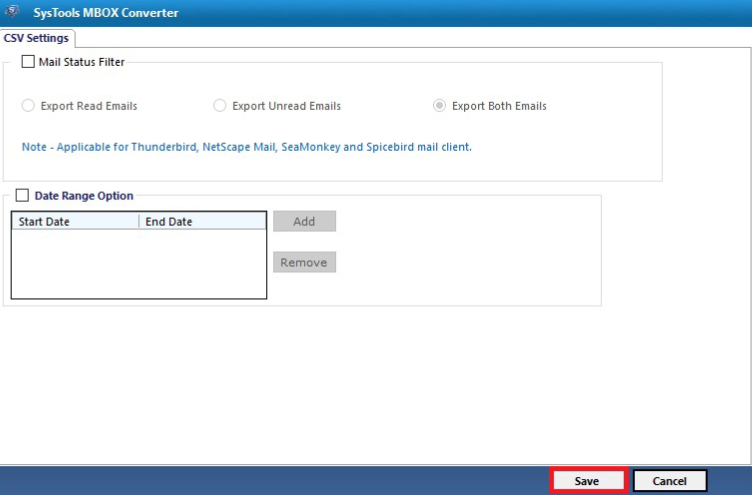
- Choose the fields you want to export from the given options and apply filters.
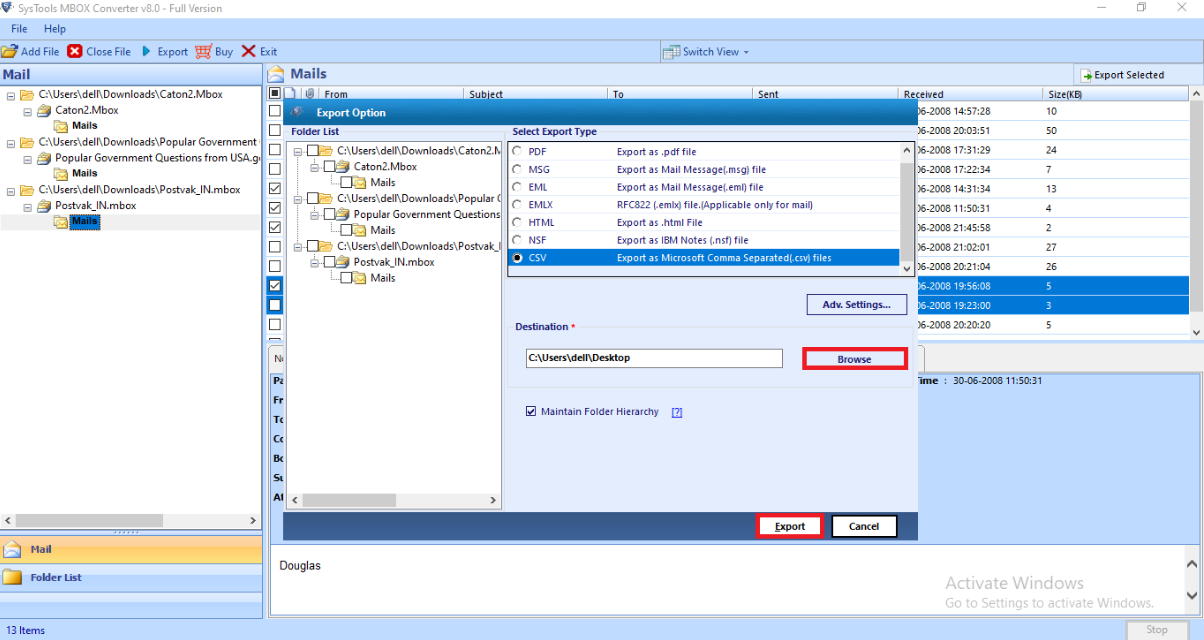
- Select the destination folder.

- Click Export, and then you can open the file in Excel or Google Sheets.
What to look for in an MBOX to CSV Converter
- While using an offline converter tool, keep these points in mind-
- Conversion of multiple MBOX files at once in batch mode
- Stable performance and reliable output on large files
- Preview the emails before exporting
- Field selection and filters available
- Unicode support so that non-English text is not broken.
- Compatibility with MBOX files from various email clients.
- Does not require downloading of original email client.
Are Online MBOX to CSV Converters Safe?
Online converters may seem like an easy and quick option, but they do have some real drawbacks that are concerning-
- Privacy risk: Your important emails get upload on a third-party server.
- File size limitation: Some online converters do not allow uploads for large files.
- Limited Field selection options: Online converters often provide only basic headers as output.
- Few Supports: Many MBOX to CSV converters do not allow MBOX as an input format at all.
MBOX to CSV: Manual vs. Converter Comparison
| Manual (Thunderbird/Python) | MBOX to CSV Converter |
|---|---|
| Needs technical skills to convert | No technical skills needed to operate it |
| Offers limited large file support | Allows conversion of multiple files at once |
| Offers very limited field selection | Lets you choose fields as per your requirement |
| May be risky for important files | A safe option for sensitive files |
| Higher risk of errors | Very low error risk with an offline converter |
Conclusion: Which MBOX to CSV Method Should You Choose?
Converting MBOX to CSV becomes easy when you select the right method. The manual methods with Thunderbird can be used for small files that do not contain any confidential or personal information. For large files or conversion of multiple MBOX files at once, an MBOX to CSV converter is a faster, safer, and reliable option.
FAQs
- How do I convert MBOX to Excel?
Ans. To convert MBOX to Excel, first convert your MBOX files into CSV format using a dedicated offline tool such as a Revove converter tool. Open the converted CSV file in Excel and save it as .xlsx file. - Does it files also include attachments while converting MBOX to CSV?
Ans. No. CSV files are plain-text files and do not contain any attachments. The Revove tool allows users to extract attachments with MBOX files in different formats, ensuring it is not lost during conversion. - Can I export only email addresses from an MBOX file?
Ans. Yes. You can select the fields in the tool before converting the file. The tool gives you options to choose the fields you want in your output CSV file. - Can I convert MBOX to CSV on a Mac?
Ans. Yes. Manual methods such as Thunderbird or python codes can run on Mac as well. The Revove MBOX to CSV converter also has its Mac versions that users can install and use efficiently. - Can I split files after converting it from MBOX to CSV?
Ans. Manual methods usually don’t allow you to split files like that after conversion. You can effortlessly split the large files into multiple small files after conversion using the Revove tool.