Fix SQL Server Error 823 – Quickly Solve Fatal Error

Have you recently encountered the SQL Server 823 error while accessing your SQL Server database? Before we learn how to fix SQL Server error 823, let’s understand the error briefly. Well, this error usually occurs due to SQL Server database corruption or Windows API issues, further making the database inaccessible or restricting operations in the database. With the help of this technical write-up, we will learn the common causes of the error and how it can be resolved without data loss.
What is SQL Server Error Code 823?
SQL Server Error 823 often occurs when the server encounters an issue while reading or writing data to a disk. The error generally indicates hardware issues, storage issues, or file system corruption in the database files. The error can further lead to complete database inaccessibility and permanent data loss. When the error occurs, it becomes crucial for the database administrators to find the root cause of the error and then find the appropriate solutions to fix SQL Server error 823 accordingly.
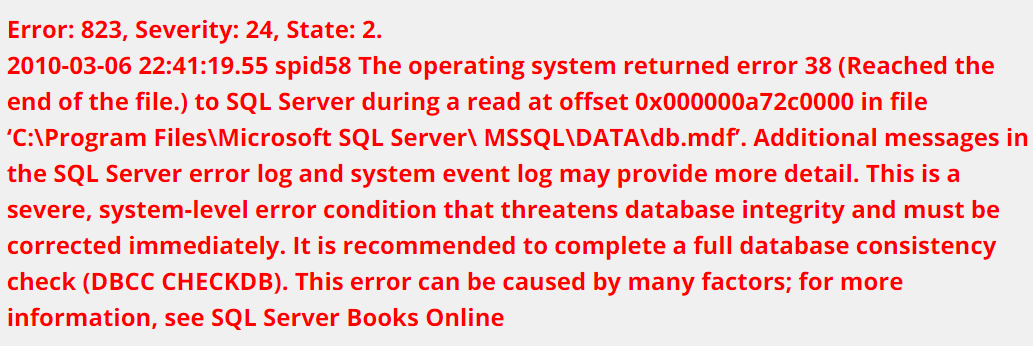
Below is the visual representation of the SQL Server Error 823 message:
Important Note: In case your SQL database is corrupted or inaccessible and want to resolve it quickly and effectively without any hassle then you can take the help of SQL Database Recovery Software. For complete details, the user can try the demo version of this application.
Let’s now take a look at some of the causes for the error and understand how certain factors result in the error occurrence.
Common Causes for SQL Database Error 823
Here are some of the common reasons that lead to the occurrence of the error:
- One of the causes for the error is disk or storage failure, as already mentioned above. Bad sectors or faulty storage systems can be a bigger issue in such cases.
- Another reason is the issue with disk controllers or storage connections can also interrupt the read and write operations and further cause error 823.
- File system corruption damages the file system and can lead to SQL Server being unable to access the database files properly.
- In case of corrupted database files in SQL Server, the error can occur. With the existing corruption in the database files, SQL Server might fail to read or write records in the database.
- Disk space insufficiency is another cause for the occurrence of the error that can lead to data loss.
Problems Associated With the Microsoft SQL Server Error 823
With the SQL Server error 823, there are many issues. Before jumping to the solutions to fix SQL Server error 823, we will take a look at these problems first. Here are some more issues displayed below:
- Torn Page: This is a page that is written incorrectly. And to find out if it is written for every 512 bytes on the page. This allows the page to be found to have been written to disk unsuccessfully. Furthermore, it is not able to show whether the data stored on the disk is correct. However, users can detect these errors after running the CHECKDB command in the database.
- Bad Page ID: This is a type of problem that emerges when the header page ID is not the same as the expected ID while reading the disk.
- Insufficient Byte Transfer: This is a byte transfer error, which means that the API call was initiated successfully but the bytes transferred were not as expected.
From the above section, all the important things like SQL Server Error, how it shows, and the possible issues behind it have been known and understood. Now, it is time to know the solutions to fix SQL Server error 823. So, to resolve the error, there are two methods available: a manual approach and an automated solution. This method is useful for all tasks like recovery, error solving, conversions, import/export, etc. Now let’s start with the first method.
Fix SQL Fatal Error 823 with Manual Method
In this section, we are going to describe two manual approaches to resolve Microsoft SQL Server error 823. Through this, you will be able to solve this error. So, let’s take a look at these methods now.
Method 1:
To fix this error, run a DBCC CHECKDB command and try to fix SQL Server error 823 using the following sentence:
DBCC CHECKDB (DB_NAME, REPAIR_REBUILD);
If you want to use single-user mode, then change the mode. To do this, you can use the following T-SQL sentence:
ALTER DATABASE DB2 SET SINGLE_USER WITH ROLLBACK IMMEDIATE;
Method 2:
Another way to solve SQL Server error 823 is described further below. To start this way, follow the steps below:
- First, scan the MS SQL database to find suspicious pages.
- Then, do a thorough scan of the SQL Server database.
- If an error occurs, run the command “DBCC CHECKDB” on the system.
- Now, restore the SQL Server database again from the backup file.
- Finally, check the “Windows Application Event Log” to see the problem.
Here the manual method ends. In case users are thinking of relying on this, they must be aware of the drawbacks as well. For instance, manual operations are time-consuming and highly technical. Now, users might be feeling stuck because if they do nothing, the risk of data loss increases. On the other hand, executing this method brings multiple challenges. Thus, the second solution is way more practical & even recommended by SQL experts and MVPs.
A Professional Tool to Fix MS SQL Server Error 823
If you have used the above method and now your database file is corrupted and damaged, then you need to use the Revove SQL Recovery Tool. This tool will help you to fix all corruption errors in SQL database files. This tool is user-friendly, and it offers ingenious features to fix SQL Server Error 823 and restore the database.
This software is designed to fix the corrupt databases of Microsoft SQL Server 2025, 2022, 2019, 2017, 2016, 2014, 2012, and older versions. It restores the tables, reports, macros, stored procedures, constraints, forms, triggers, default constraints, and other SQL database objects. Also, this application provides the facility to recover deleted SQL table records.
Steps to Repair SQL Database Error
- To fix SQL Error 823, install and run the tool on your device. Then click on Open to add SQL MDF file.

- Choose Quick Scan or Advanced Scan mode to scan healthy objects.

- Now, preview the database objects such as tables, views, stored procedures, rules, triggers, functions, etc.

- Next, select the destination path and add authentication details to fix SQL Server error 823.

- Lastly, choose one of Export With Schema Only or Export With Schema and Data to ensure precise repair. Then click on the Save button.

Why Professional Solution is the Optimal Choice?
- This tool allows data repair from corrupted SQL database files such as MDF and NDF files.
- Additionally, restore SQL database components such as triggers, stored procedures, rules, functions, and tables.
- It offers two scanning options, Quick Scan and Advance Scan, and supports ASCII and Unicode XML file types.
- Users can export the database in three modes: To a live SQL Server, to SQL-compatible scripts, & to CSV file format.
- It can repair the data & export with schema only or with schema & data, as per the requirements of users in different scenarios of SQL error 823.
- The software can also help users recover deleted SQL objects. After scanning it shows such objects in red for preview.
- Also provides support for SQL Server files from 202, 2022, 2019, 2017, 2016, 2014, 2012, 2008, 2004, and 2000.
The Bottom Line
In this article, we have discussed different problems associated with this error code 823. Then, we learned how to fix SQL server error 823. This fatal error 823 is a very common issue faced by SQL Administrators. However, they can try to fix this error manually or with the help of a third-party tool.
Frequently Asked Questions
Q 1: What do SQL errors 823, severity 24, and state 2 mean?
Ans: Error 823, state 2, and severity 24. The error code in the error message is 823. According to severity level 24, the fault was caused by a problem with hardware or software. To differentiate the error from others with the same number but in a different position, state 2 is used.
Q 2: What do error codes 823, 824, and 825 mean?
Ans: I/O failures in SQL Server are all associated with errors 823, 834, and 825. These errors occur when a hardware or software problem prevents SQL Server from reading or writing data to disk.
Q 3: How can I detect SQL errors?
Ans: Use a text editor or SQL Server Management Studio to view the SQL Server error log. See Open Log File Viewer for more details on how to view the error log. The default location of the error log is Program Files\Microsoft SQL ServerMSSQL, followed by MSSQLLOG\ERRORLOG and ERRORLOG.
Q 4: What are the advantages and disadvantages of SQL Server?
Ans: Below, we have listed some of its common advantages and disadvantages:
Benefit
- Easy and Simple
- Quick Query Execution
- Common language
- Transportable
- Extremely Interactive
Harm
- Bad Interaction
- cost-effective
- Limited Control
- Security